
Installing the Doctolib extension, step by step.
Nothing goes out until you have activated sending. You need Chrome and your Doctolib diary open.

The seven steps.
Install the extension
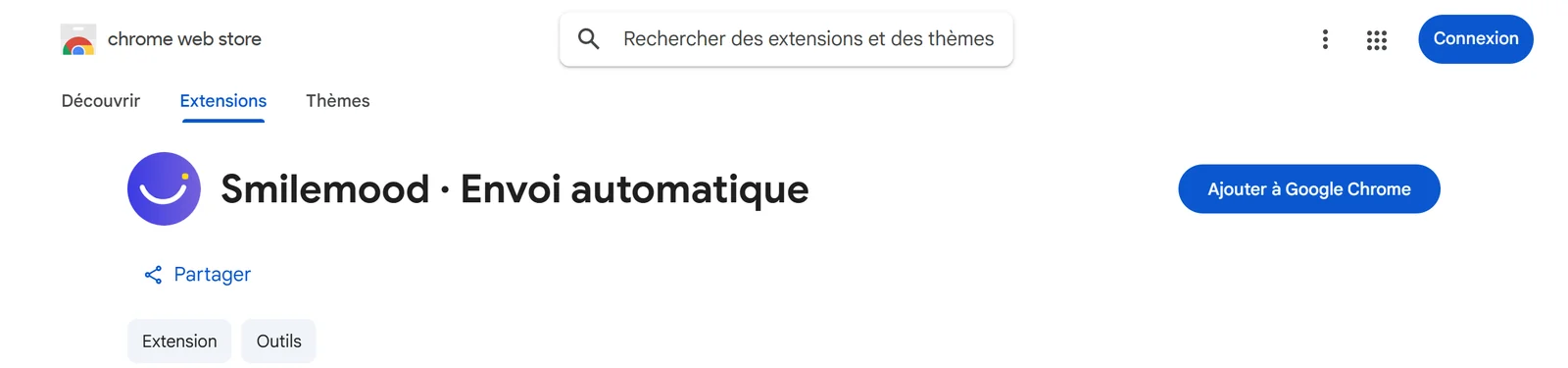
Add “Smilemood · Envoi automatique” from the Chrome Web Store. A Smilemood tab opens on its own.
Log in
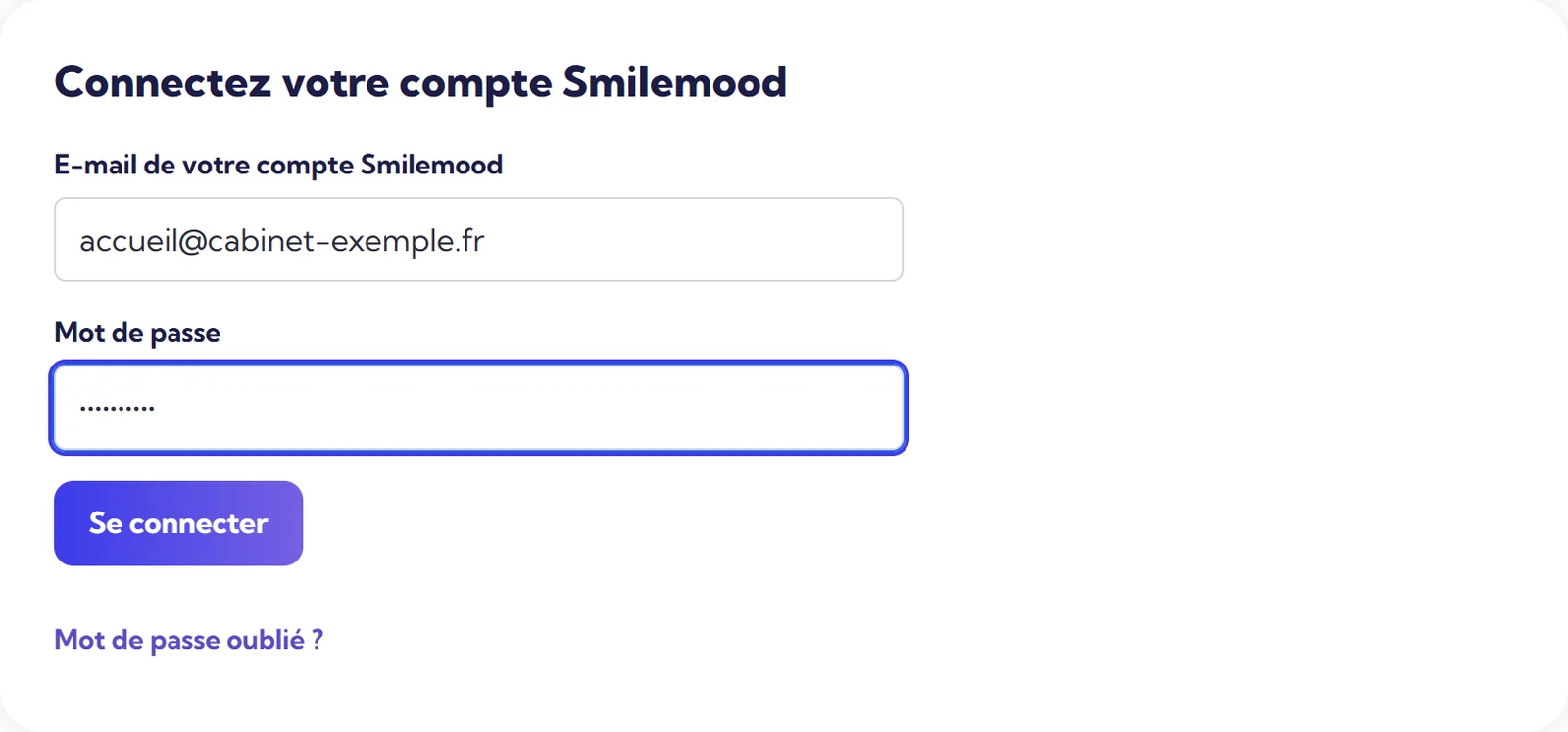
Use your Smilemood account. If you have several centres, choose the one that receives the reviews.
When to send?
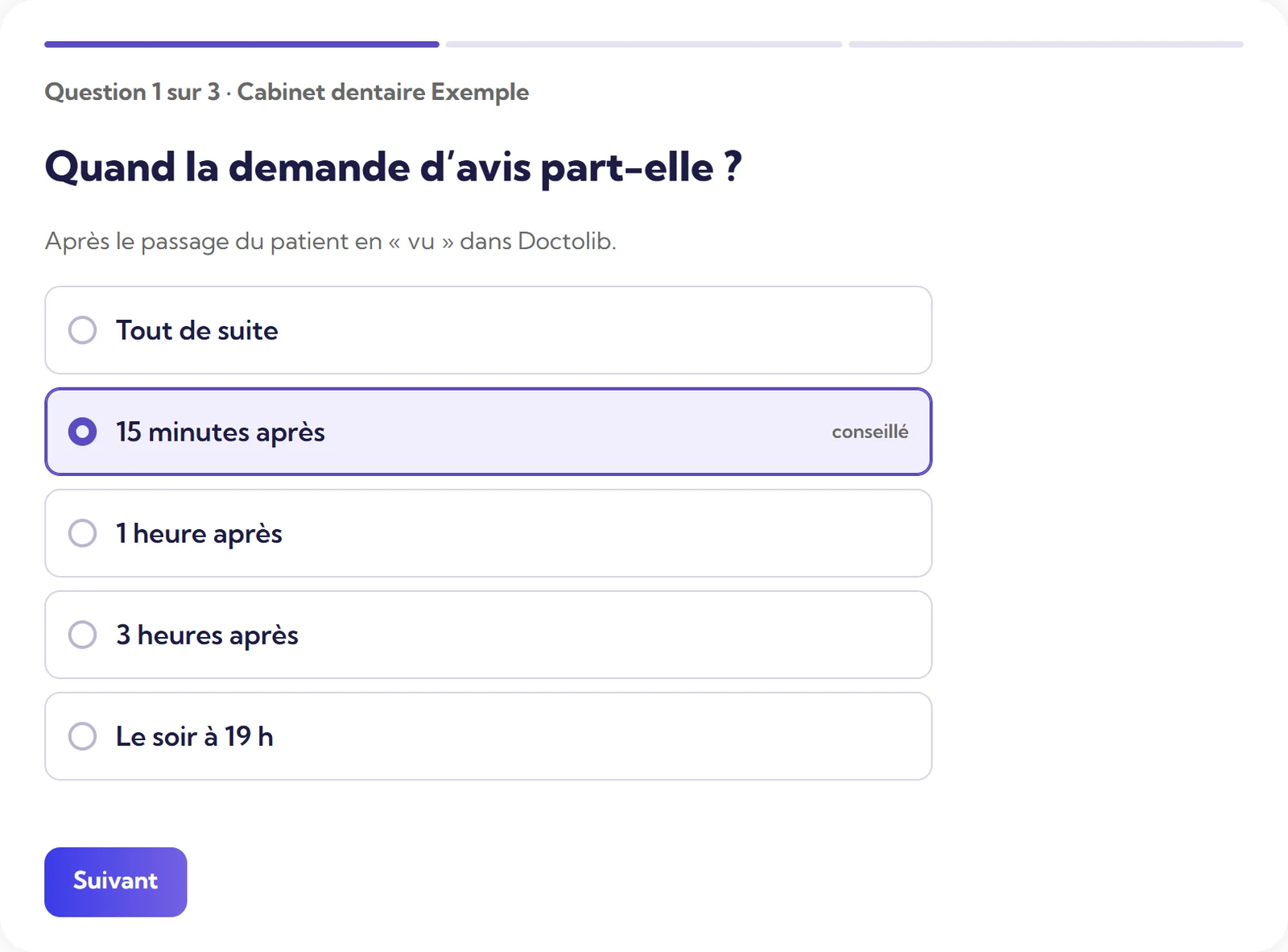
Straight away, 15 minutes after “seen” (recommended), 1 hour, 3 hours, or in the evening at 7 pm. The request goes out between 9 am and 8 pm, Monday to Saturday, 50 per day at most. These limits can be changed.
How to send?
By SMS or by email. If the number is missing, the request goes out by email; if the email is missing, by SMS. You also decide what happens when there are no SMS credits left.
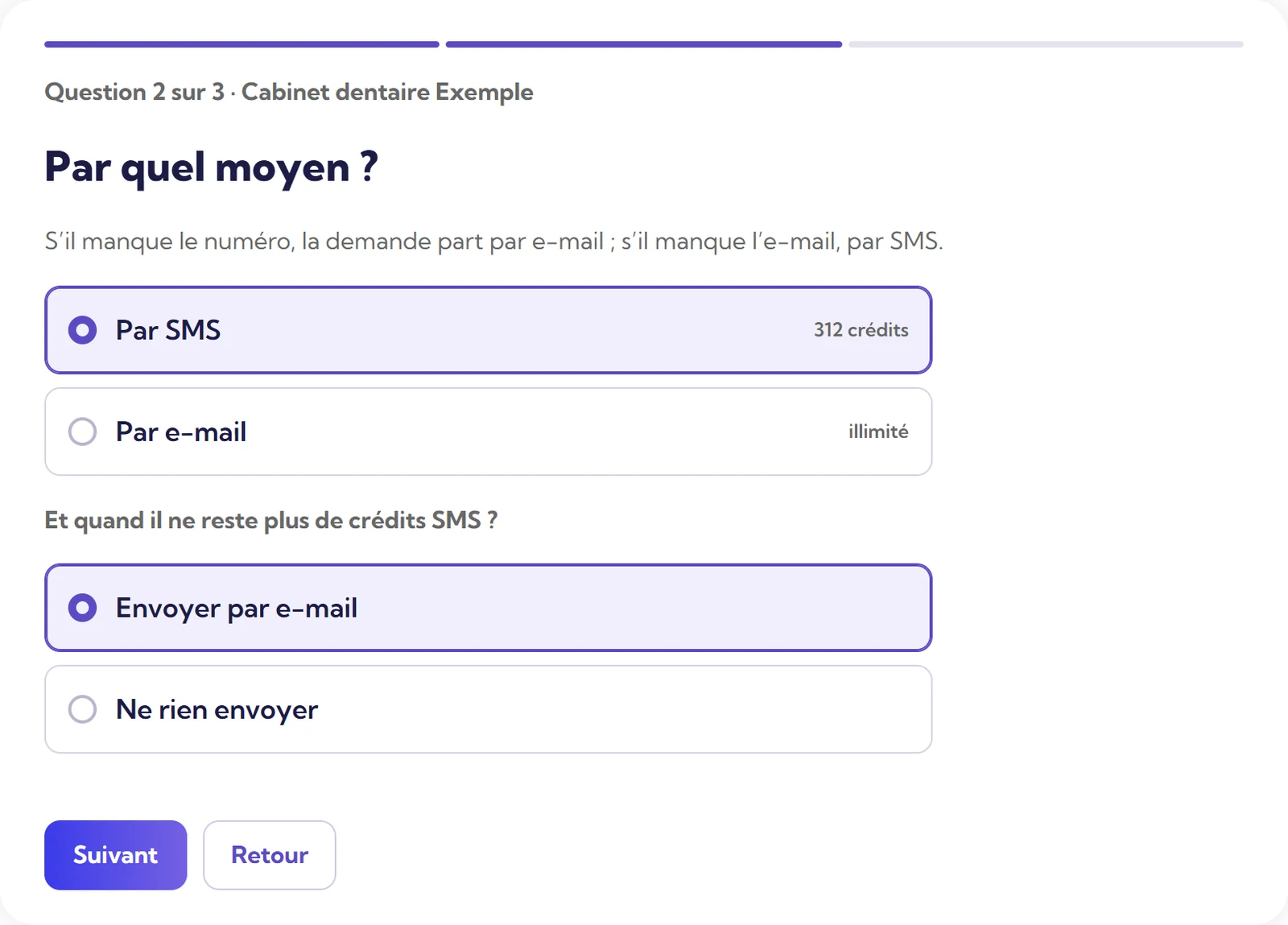
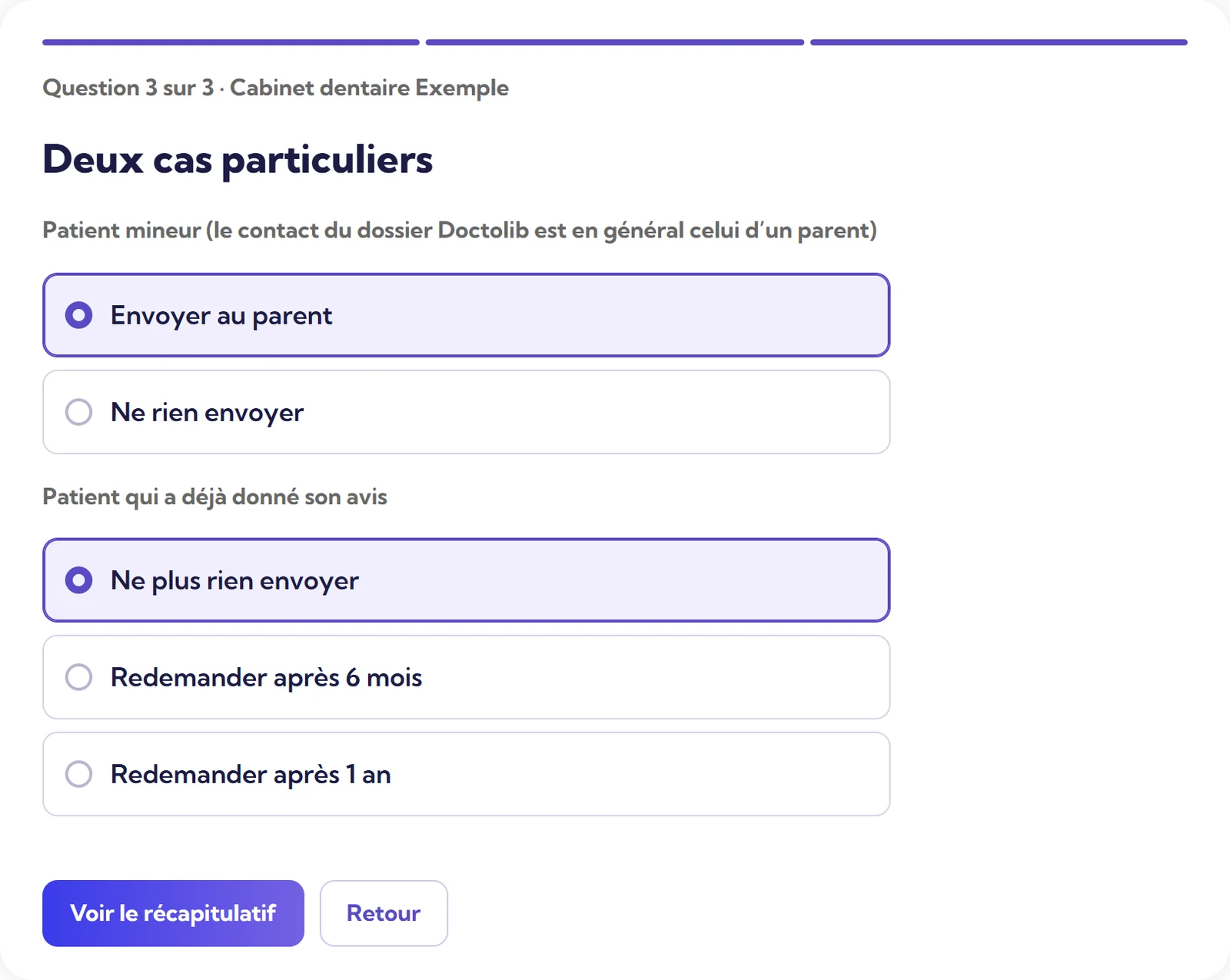
Special cases
No-shows, cancellations and people who refused notifications never receive anything, and an appointment does not trigger two requests. You set the other exceptions here.
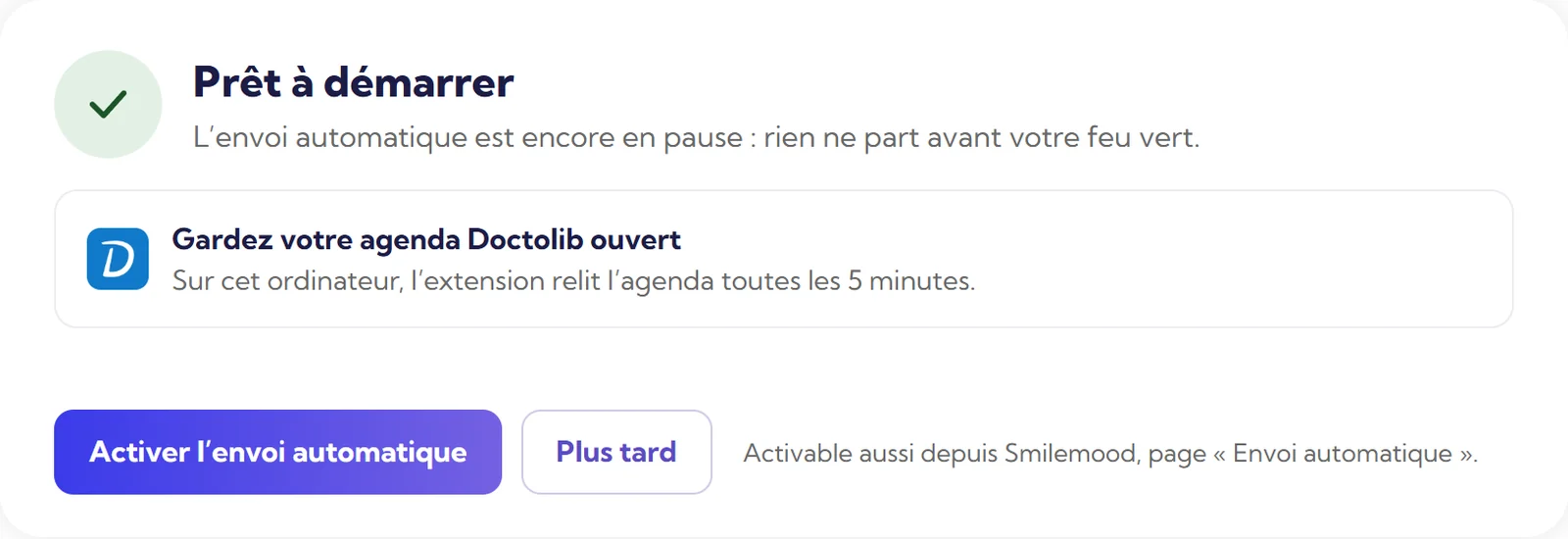
Review and activate
A summary sets out your choices. Nothing goes out until you have activated sending.
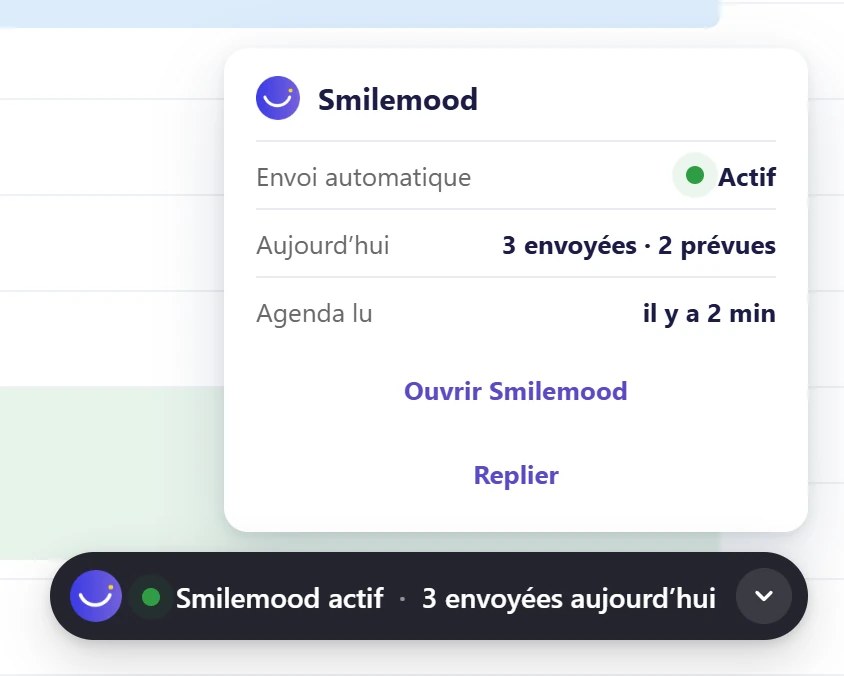
Keep the diary open
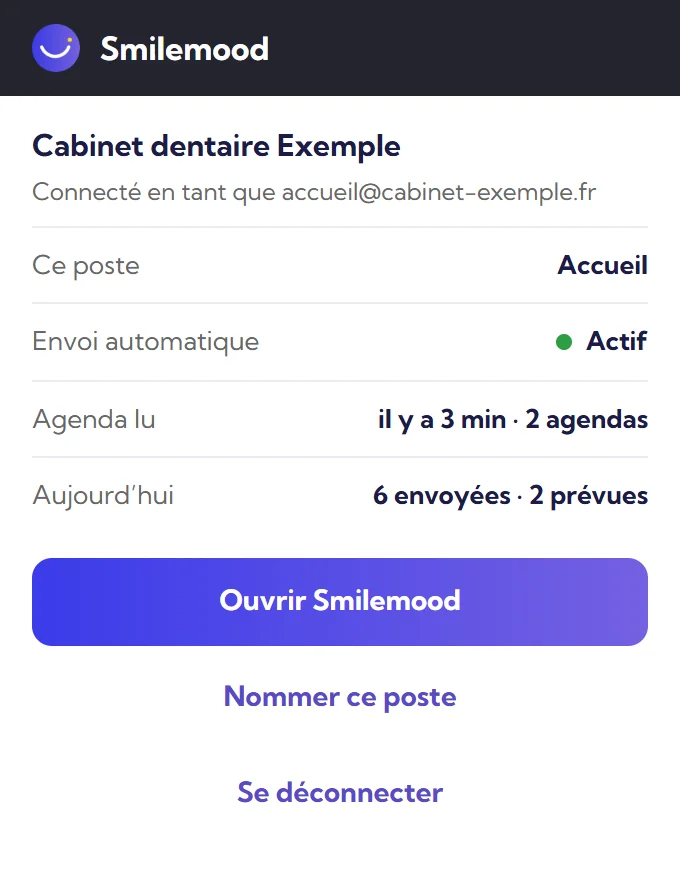
The extension rereads the diary every 5 minutes, for the current day and the day before. A label in the diary and a badge on the icon tell you whether all is well.
The guide to keep.
The same guide is available as a PDF, to print for reception.
Download the guide (PDF)Your questions.
Another question? All the answers are sorted by topic, with a search field.
All questionsDo I need to change my booking software?
No. The Smilemood extension for Chrome reads your Doctolib diary and sends the review request after the “seen” status. The diary must stay open in Chrome.
When does the request go out after “seen”?
You choose: straight away, 15 minutes later (the recommended setting), 1 hour, 3 hours, or in the evening at 7 pm. It goes out between 9 am and 8 pm, Monday to Saturday, 50 per day at most. These limits can be changed.
Who never receives a request?
Patients who did not attend, cancelled appointments and people who have refused notifications. The same appointment does not trigger two requests.
What does the extension read in my diary?
Appointments marked “seen”, with the patient’s first name, surname, email and phone number, to send them the review request.
Is the review request compatible with my professional rules?
They vary according to your professional body: check with it. A public reply must give no treatment details, and you read over each one.
Does the extension work on all browsers?
The guide is written for Chrome, where the extension is published on the Chrome Web Store.
See also.